How to move two WhatsApp accounts from Android to iOS
Quick Answer: Two WhatsApp accounts on one iPhone
Yes, you can run two WhatsApp accounts on one iPhone. iOS does not have Android-style work profiles, so a second copy of regular WhatsApp is not possible. What is possible is installing WhatsApp and WhatsApp Business side by side on the same iPhone. Two apps, two phone numbers, two chat histories, two iCloud backups, no jailbreak.
Yes, you can move both accounts over from Android without losing chats. The catch: Apple's Move to iOS can only see one WhatsApp on Android at a time, and only during the iPhone's out-of-box setup screen. So bringing two accounts across takes two Move to iOS runs, two iPhone wipes, and a temporary Business-to-regular downgrade on Android in the middle. Roughly a weekend of elapsed time, mostly waiting for backups.
The 16-step recipe below is the one I wish I'd had when I started. Every chat, every voice note, every starred message survives if you follow it in order. Good luck!
Recently, a very close friend gifted me an iPhone 17 Pro. This was wildly kind of him, but it was also the single fastest way to wreck my WhatsApp setup that I could have encountered.
See, I'd been on Android for years, and like a lot of Android people in India, I ran two WhatsApp accounts on one phone: a private one inside the work profile, and a public one in the main profile. The work-profile trick had been my little luxury forever. One number for family and close friends, another for everything else. Neat separation, near-zero mental overhead.
iOS, however, does not do work profiles. What iOS does offer is WhatsApp and WhatsApp Business, two separate apps, two separate numbers, two separate chat histories. Close enough in theory. In practice, moving from Android with two WhatsApps to iOS with WhatsApp + WhatsApp Business is nowhere near as clean as Apple and Meta would like you to believe.
I spent multiple evenings reading blog posts, browsing Reddit threads, watching YouTube videos, and burning tokens. Half of it was outdated (pre-Move to iOS WhatsApp transfer era). The other half was straight-up contradictory. One post confidently claimed you could "just install WhatsApp Business on iOS and scan the QR code from WhatsApp Business on Android" - which transfers exactly zero messages. Another wanted me to use iMazing. A third swore by SD card exports that an iPhone cannot read in the first place.
Eventually though I figured it out, and moved both accounts without losing a single chat. This post is the clean version of that process. The one I wish I'd had on day one.
What Are You Actually Up Against?
Before we delve into the steps, it helps to see why this is harder than it should be:
- iOS has no dual-profile WhatsApp. If you want two WhatsApps on one iPhone, they have to be WhatsApp and WhatsApp Business. Apps, not profiles.
- Android backs up to Google Drive. iOS backs up to iCloud. These two do not talk to each other. There is no "restore from Google Drive on my iPhone" button, and there will probably never be.
- The only working Android-to-iOS chat transfer is the official Move to iOS app. That app reads WhatsApp's local Android database directly and pipes it over a private WiFi channel or cable (for faster and more reliable transfers, please use the cable) to the iPhone during initial setup. Which means two important things:
- The iPhone has to be freshly wiped every time you want to transfer a WhatsApp, and
- Move to iOS can only ever transfer one WhatsApp per run, since Android only ever hosts one "WhatsApp" at a time.
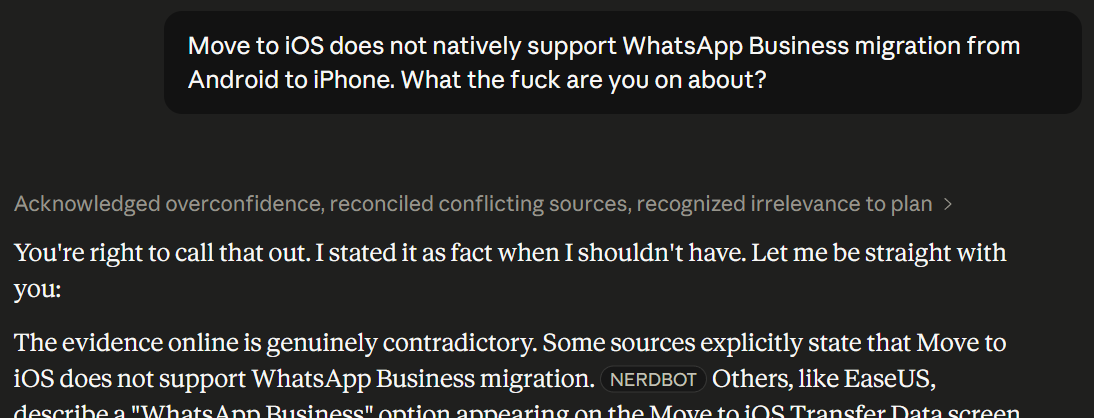
- WhatsApp Business cannot be moved to iOS directly by Move to iOS. Only regular WhatsApp. So if you want your Business chats living inside iOS's WhatsApp Business app, you first have to downgrade them into regular WhatsApp on Android, transfer, and convert back on iOS. Yes, this is actually as silly as it sounds.
Put all four together and you start figuring out the outline of the solution: You will wipe the iPhone twice, reinstall WhatsApp on Android twice, and shuffle the Public account in and out of WhatsApp Business at least once.
The Plan
Two numbers to move. Call them:
- Private Number: Lived in the Android work profile as regular WhatsApp, connected to the Private Google Account.
- Public Number: Lived in the Android main profile, about to become WhatsApp Business, connected to the Public Google Account.
End state on iOS: WhatsApp holds the Private Number, WhatsApp Business holds the Public Number. Both with their own Google Accounts, the full chat history, media, voice notes, etc.
The high-level plan is:
- Get both accounts backed up to their respective Google Drives as insurance, always.
- Shuffle the Private WhatsApp into Android's main profile, and transfer it to iOS.
- Back up the Private WhatsApp to iCloud on iOS. Wipe the iPhone.
- Downgrade the Public WhatsApp from WhatsApp Business to regular WhatsApp on Android, transfer to iOS.
- Back it up to iCloud. Wipe the app.
- Install WhatsApp and WhatsApp Business on iOS side by side, and restore each number into the right app.
Now, the actual steps.
Step 1: Promote the Public WhatsApp to WhatsApp Business on Android
If the Public number is still sitting in plain WhatsApp on Android, upgrade it to WhatsApp Business first. The conversion happens in situ: Install WhatsApp Business, sign in with the same number, and it'll migrate your chats over from regular WhatsApp automatically.
The reason is straightforward: Your business metadata (catalogue, labels, away messages, categories) gets created now, so it can be captured in the Public Google Drive backup in Step 2. You'll recreate some of it on the iOS side anyway, but having a reference is nice.
Step 2: Back up both accounts to Google Drives
Run a full backup to the Google Drives for each WhatsApp on Android i.e. the Private WhatsApp in the work profile, and the Public WhatsApp (now WhatsApp Business) in the main profile.
Mine were 40 GB and 20 GB. Be patient. This is your safety net. If anything goes wrong five steps from now, you can always drop these back onto an Android phone and start over.
Note: You'll need enough Google Drive headroom for each account. 60 GB of WhatsApp plus whatever photos you already have means you're probably looking at the 100 GB plan on Google One (or higher). And yes, use two Google Accounts, otherwise the backups will overwrite one another.
Step 3: Upgrade iCloud to 200 GB
Both WhatsApp and WhatsApp Business will eventually sit on the iPhone with their own iCloud backups. Together mine came to ~60 GB. The 50 GB iCloud plan will not cut it. Bump up to 200 GB for now, you can drop back down after the migration if you really want to.
Step 4: Erase the iPhone (First Wipe)
From the official Apple Guide:  Settings App > General > Transfer or Reset iPhone > Erase All Content and Settings.
The iPhone now boots back into the out-of-box setup screen, which is the only screen that supports the Move to iOS procedure. You'll be back here again later btw, which is where the "twice" comes from.
Step 5: Move the Private WhatsApp into Android's main profile
Now, Move to iOS only sees one WhatsApp i.e. whichever one is installed in Android's main profile. So the Private WhatsApp has to temporarily live there.
Sequence:
- In the work profile, uninstall WhatsApp.
- In the main profile, leave the Public Business WhatsApp alone. The Google Drive backup from Step 2 has your back if anything goes sideways.
- In the main profile, install regular WhatsApp fresh, sign in with the Private Number, and accept the offer to restore from the Private Google Drive. Wait for your chat history and media files to be pulled down.
WhatsApp and WhatsApp Business are independent apps on Android, so having both installed in the same profile with two different numbers is totally fine. The Private WhatsApp is now sitting in the main profile as plain WhatsApp, which is exactly where Move to iOS can see it.
Step 6: Install "Move to iOS" on Android
Normal Play Store install, free, from Apple. Don't overthink it.
Step 7: Run Move to iOS for the Private WhatsApp
Connect the two phones with a USB-C to USB-C cable or via WiFi. Make sure both phones have full batteries, you don't want either the Android or the iOS dying in the middle of the transfer.
Now, on the iPhone's setup screen from Step 4, pick "Move Data from Android". It'll spit out a one-time code. Enter that on the Android app, and the two phones will sync up.
When the "What do you want to transfer?" screen appears, pick only WhatsApp. Not WhatsApp Business, not photos, not contacts, nothing else. We're moving one app at a time. Android WhatsApp will then generate a transfer token, and your Android WhatsApp will be signed out and temporarily unusable while the transfer runs. That's normal.
Let it finish. On a 40 GB account mine took about 4 whole hours via cable on the first attempt, it was stuck at "About 6 minutes remaining" for 2 hours. I had to cancel it and try again later via WiFi and, despite it taking much longer, I was able to do it overnight with both phones connected to their respective chargers. Your mileage will vary.
Step 8: Install WhatsApp on iOS and let it restore
After Move to iOS finishes, finish iOS setup and land on the home screen. Install WhatsApp (regular, not Business) from the App Store. Open it, sign in with the Private Number, and iOS WhatsApp will detect the transferred Android data and offer to restore. Say yes. Wait.
Once you're inside the app with all the old chats visible, go to Settings > Chats > Backup and run a Manual iCloud Backup. Wait for it to actually complete ("Last backup: just now").
This iCloud backup is the entire point of our detour. Skipping it means redoing the Android side from scratch.
Step 9: Delete WhatsApp from iOS
Once the iCloud backup is confirmed, delete the WhatsApp app from the iPhone. The iCloud backup lives independently of the app, and it sticks around under your Apple ID. We're about half-way there, yay!
Step 10: Erase the iPhone again
Second wipe. Follow Step 4 again. We're now back to the out-of-box setup screen.
I know this might feel ridiculous the first time, but trust the process. You need a fresh setup screen to run Move to iOS a second time.
Step 11: On Android, uninstall both WhatsApps and reinstall WhatsApp
The Private WhatsApp is done as far as Android is concerned. The Public Business WhatsApp is safely backed up on Google Drive from Step 2.
- Uninstall regular WhatsApp from the Android main profile (the one currently holding the Private Number).
- Uninstall WhatsApp Business from the main profile (the one holding the Public Number).
- Install regular WhatsApp, fresh.
Step 12: Sign into regular WhatsApp on Android with the Public Number
Open the new WhatsApp install, and sign in with the Public Number. WhatsApp will notice that this number was previously used on WhatsApp Business, and throw up a scary warning:
Your WhatsApp Business catalogue, labels, and away messages will be lost if you continue.
Accept it. The chats themselves are preserved. Only the business-only metadata is dropped, and you'll recreate that side of things inside iOS's WhatsApp Business later on anyway. For most small accounts, that's like 10 minutes of rebuilding a catalogue.
Let WhatsApp restore the Public Number's backup from the Public Google Drive. Coffee, again.
Step 13: Run Move to iOS for the Public WhatsApp
Same drill as Step 7, different account. On the freshly erased iPhone's setup screen, pick "Move Data from Android", enter the code on the Android side, pick only WhatsApp, and wait it out.
Step 14: Restore and back up the Public WhatsApp on iOS
Finish iOS setup, install WhatsApp (still the regular one, not Business), sign in with the Public Number, and restore from the transferred Android data. Then go to Settings > Chats > Backup and run a manual iCloud backup. Wait for it to complete.
At this point, iCloud has two separate WhatsApp backups on your Apple ID, one per number:
- Private Number
- Public Number
Both are indexed by their phone numbers. This is the end of the dangerous part.
Step 15: Delete WhatsApp from iOS
Delete the WhatsApp app from the iPhone. Both iCloud backups stay exactly where they are.
Step 16: Install WhatsApp and WhatsApp Business (for real this time)
We're finally at the finish line. Install both WhatsApp and WhatsApp Business from the App Store, side by side.
- Open WhatsApp and sign in with the Private Number. iOS finds the iCloud backup for that number and restores it. Private chats land in WhatsApp.
- Open WhatsApp Business and sign in with the Public Number. On first launch, WhatsApp Business detects a WhatsApp iCloud backup exists for this number and offers to migrate it in. Accept. Public chats land in WhatsApp Business, under the Business branding.
Rebuild your catalogue, labels, and away messages inside iOS WhatsApp Business. If you took screenshots during Step 1, this is the moment they earn their keep.
A few things that bit me
- Do not skip waiting for the iCloud backup to actually complete. On slow internet, "Back Up Now" silently queues until you're on WiFi + charging + screen-locked. I deleted WhatsApp once thinking the backup was done, and had to redo the whole Android side.
- Move to iOS hates being interrupted. The WiFi peer-to-peer channel tolerates basically nothing, so use the cable (please!). Keep both phones connected, and just let it finish in one sitting.
- If WhatsApp Business on iOS does not offer to import chats, the iCloud backup hasn't completed yet. If you sign into WhatsApp Business on iOS with the Public Number and never see it, kill the app, wait five minutes, reopen. If it still doesn't show up, the iCloud backup for that number is either missing or corrupted, and you might want to redo Step 14.
- Keep the Android phone usable through all of this. At various steps Android WhatsApp is signed out, transferring, or freshly installed with no chats. Don't factory-reset the Android phone until iOS has been stable for a few days and you've actually used both apps.
Why So Complicated?
The whole thing reduces to two hard constraints:
- Move to iOS can only transfer the one WhatsApp that Android currently hosts.
- iOS can only have one iCloud backup per (number, app) pair.
Every weird step in this guide is a consequence of those two. The work-profile shuffling, the Business-to-regular downgrade on Android, the two iPhone wipes, the two separate iCloud backups.. all of them exist so that at each Move to iOS run exactly one number is presented as the WhatsApp on Android, and the iPhone is clean enough for its setup screen to accept the transfer.
Closing
I went into this assuming it would take an evening. It took several days, mostly spent researching, watching progress bars crawl slowly, retrying on failures.
But at the end, every message, every voice note, every starred message and every media file is sitting inside the right app on the iPhone, under the right number, with zero loss. For a transition between two ecosystems that genuinely do not want to cooperate.. meh, I'll take it.
If you're about to do this same migration then please save yourself the wasted effort of going through contradictory guides, convoluted Reddit threads, and follow the steps above in order, back everything up twice, wipe the iPhone twice, and wait for every iCloud backup to actually finish. That's the whole trick.
Frequently asked questions
Can you have two WhatsApp accounts on one iPhone?
Yes. iOS does not offer work profiles the way Android does, but you can install WhatsApp and WhatsApp Business as two separate apps on the same iPhone. Each app runs its own phone number, chat history, contacts, and iCloud backup, so you effectively get two WhatsApp accounts on one iPhone without any jailbreak or third-party trickery.
Can you have two WhatsApp accounts on one iPhone without WhatsApp Business?
No, not through any supported route. iOS only allows one instance of a given App Store app, so a second regular WhatsApp cannot be installed. The only supported way to run two WhatsApp accounts on one iPhone is to use WhatsApp for one number and WhatsApp Business for the other. Sideloading a second WhatsApp is not officially supported and will break at some point.
Does Move to iOS transfer WhatsApp chats from Android?
Yes, for regular WhatsApp. During iPhone setup, Move to iOS reads the local WhatsApp database on Android and pipes it over cable or WiFi to the iPhone. WhatsApp Business chats are not transferred by Move to iOS directly. To move a WhatsApp Business account you first downgrade it to regular WhatsApp on Android for that number, transfer it, and then let iOS WhatsApp Business import the WhatsApp iCloud backup.
Can I move two WhatsApp accounts from Android to iPhone in one go?
No. Move to iOS can only see the one WhatsApp installed in Android's main profile at a time, and it only runs during the iPhone's out-of-box setup screen. To move two WhatsApp accounts you have to run Move to iOS twice, wipe the iPhone between runs, and shuffle each account through Android's main profile separately.
How do I move WhatsApp Business from Android to iPhone?
On Android, install regular WhatsApp and sign in with the WhatsApp Business number. WhatsApp will warn that your business catalogue, labels, and away messages will be lost, but chats and media are preserved. Then run Move to iOS during iPhone setup, restore into WhatsApp on iOS, back up to iCloud, delete the app, and finally install WhatsApp Business on iOS. WhatsApp Business will detect the WhatsApp iCloud backup for that number and offer to migrate the chats over.
Do I really need to wipe my iPhone to move WhatsApp from Android?
Yes. Move to iOS only runs from the iPhone's out-of-box setup screen, which means the iPhone has to be freshly erased. If you want to move two WhatsApp accounts, you have to erase the iPhone twice, once per account.
How much iCloud storage do I need to move two WhatsApp accounts?
The 50 GB iCloud plan is usually not enough. For two active WhatsApp accounts, plan for the 200 GB iCloud plan. My two accounts came to about 60 GB combined, plus everything else already living in iCloud (photos, iPhone backup, etc.). You can drop back down to a smaller plan after the migration is complete.
Can I restore WhatsApp on iPhone from a Google Drive backup?
No. Google Drive backups are Android-only and iCloud backups are iOS-only, and neither app knows how to read the other's format. The only working path from Android to iPhone is Move to iOS, which reads WhatsApp's local Android database directly. Google Drive is still useful as an insurance backup in case anything goes wrong during the transfer.
Will I lose messages moving WhatsApp from Android to iPhone?
You will not, as long as you back up to Google Drive first as insurance, run Move to iOS during iPhone setup, wait for the iCloud backup to actually finish before deleting WhatsApp on iOS, and only wipe or reset Android once iOS has been stable for a few days.
How long does it take to move two WhatsApp accounts from Android to iPhone?
Realistically, plan for a full weekend. A 40 GB WhatsApp took about 4 hours over USB-C cable and roughly a full night over WiFi. Add time for two iPhone wipes, two iCloud backups, uninstall and reinstall cycles on Android, and the Business-to-regular downgrade in the middle. The actual "sitting at the phone" time is smaller than the total elapsed time.
How do I switch between WhatsApp accounts on iPhone?
You do not switch. With WhatsApp and WhatsApp Business installed side by side on one iPhone, each account lives in its own app icon on the home screen. Open WhatsApp for one number, open WhatsApp Business for the other. Notifications come from the app the message was sent to.
My Lawyer Asked Me To Add This Part In
The information provided in this guide is for general informational purposes only and does not constitute professional advice. By following any of the steps herein, you acknowledge and agree that you do so at your own risk. The author disclaims all liability for any direct or indirect loss, damage, data loss, device malfunction, or any other consequence that may arise from your use of, or reliance on, this guide. Please ensure you have adequate backups and consult qualified professionals as needed before attempting any procedure described above.
References
- ^ Dirag Biswas (@diragb): "my friend, who i have helped over the years, gifted me an iphone 17 pro." Twitter, 13 Apr. 2025, Twitter/X.
- ^ BraceyIsGod. "Trying to move all my stuff from Android to an IOS is a NIGHTMARE." r/ios, Reddit, 23 Mar. 2026, Reddit.
- ^ "Does Apple offer work profiles for iPhones?" (Dan Jones, TechTarget)
- ^ "How to back up your chat history" (WhatsApp FAQ, Android)
- ^ UnknownRebelHere. "Use the cable to transfer. I tried first with WIFI and it was so slow that I just stopped it. Charged my android full and used the cable to transfer. It took 20 mins." r/ios, Reddit, 22 Nov. 2024, Reddit
- ^ Few_Flow_407. "Note that transferring chats from WhatsApp Business on an Android device to an iPhone is not currently supported.." r/whatsapp, Reddit, 27 Jun. 2024, Reddit.
- "Erase iPhone" (Apple Support)
- ^ Marukuju. "Move to iOS - Stuck for hours." r/ios, Reddit, 2 Feb. 2023, Reddit.
Special Mentions
Claude Opus 4.6